403-519-1890


- Oct 03, 2025 |
- Ergonomics Blog
The Simple Tech Tip That Helps Reduce Hand and Wrist Strain
In today’s digital world, most of us spend hours every day typing—whether that’s sending quick texts on our phones or working on a computer. While these activities seem harmless, the cumulative strain on our bodies can add up quickly. Different keyboards require different amounts of force to depress the keys and, although that force doesn’t amount to much initially, for heavy keyboard users, the repetitive nature of the job can lead to discomfort or even musculoskeletal injuries (MSIs) in the hands, neck, wrists, and arms.
Why Typing Takes a Toll
Typing and texting require small, repetitive movements. Overtime, these movements can strain the muscles, tendons, and nerves in your hands and arms. Add in the common “text neck” posture—head tilted down, shoulders rounded forward—and suddenly your neck and upper back are paying the price as well.

- Neck and shoulders: Looking down at your phone puts extra load on your cervical spine. A head tilted forward 30–45 degrees can increase neck stress by several times your head’s actual weight and put strain on the muscles in the back of your neck; the ones holding up your head.
- Wrists and hands: Rapid thumb movements while texting, or prolonged keyboard use, increase strain on tendons and nerves.
- Forearms and elbows: Repetition and awkward wrist angles can contribute to tendonitis and nerve compression in wrists and elbows.
A Simple Solution: Speak Instead of Type
The good news is that technology now gives us a built-in way to reduce some of this strain: Dictation tools.
You may have used this with Siri or Google Assistant on your iphone or Android device, but did you know you have the same capability on your computer with Microsoft Dictate (if you have Microsoft 365). This allows you to replace much of your typing with your voice. As I sit here writing this, I am using my Dictate function to create it. It even automatically punctuates as I go along.
- On your phone, you can say “Hey Siri” to automatically talk or open a message or email, tap the microphone icon, and dictate instead of typing.
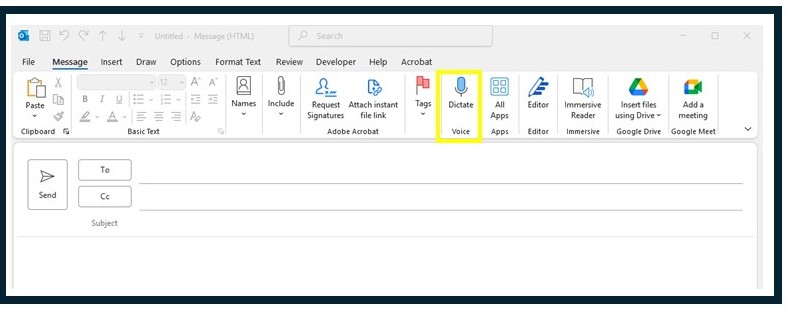
- On your computer, just click on the Dictate button in the top tool bar (looks like a microphone) in Windows and macOS to create documents, send emails, and draft notes—all hands-free.
The Ergonomic Benefits of Dictation
Switching from typing to dictating can:
- Reduce repetitive strain on thumbs, wrists, and forearms.
- Allow you to keep your head in a neutral posture instead of constantly looking down.
- Minimize awkward hand and arm positions that contribute to MSIs.
- Provide more natural breaks in your workflow, since speaking tends to be quicker than typing.
Small Changes, Big Impact
No one needs to give up typing completely. But by mixing in ‘voice-to-text’ tools—especially for longer messages, notes, or documents—you can significantly cut down on repetitive strain. Think of it as one more tool in your ergonomics toolkit to help protect your body, stay comfortable, and work more efficiently.
Posture Tip:
Hold your phone up to your face and on an angle to avoid text neck.

Dictate Button Placement:
See below for the highlighted Dictate button placement in Outlook emails. Similarly placed in the toolbar in Word and PowerPoint.
___________________________________________________________________
✅ Key Takeaway: Try using voice dictation for one type of task this week—like emails on your phone or drafting reports on your computer. Over time, you’ll find it becomes second nature and your body will thank you.
👉 Ready to feel better at work? Have questions about your setup? Contact us today and we’ll help you find simple, practical solutions for comfort.