403-519-1890

- Apr 12, 2026 |
- Ergonomics Blog
Are Multiple Monitors Causing More Harm Than Good?
Optimizing Your Monitor Setups
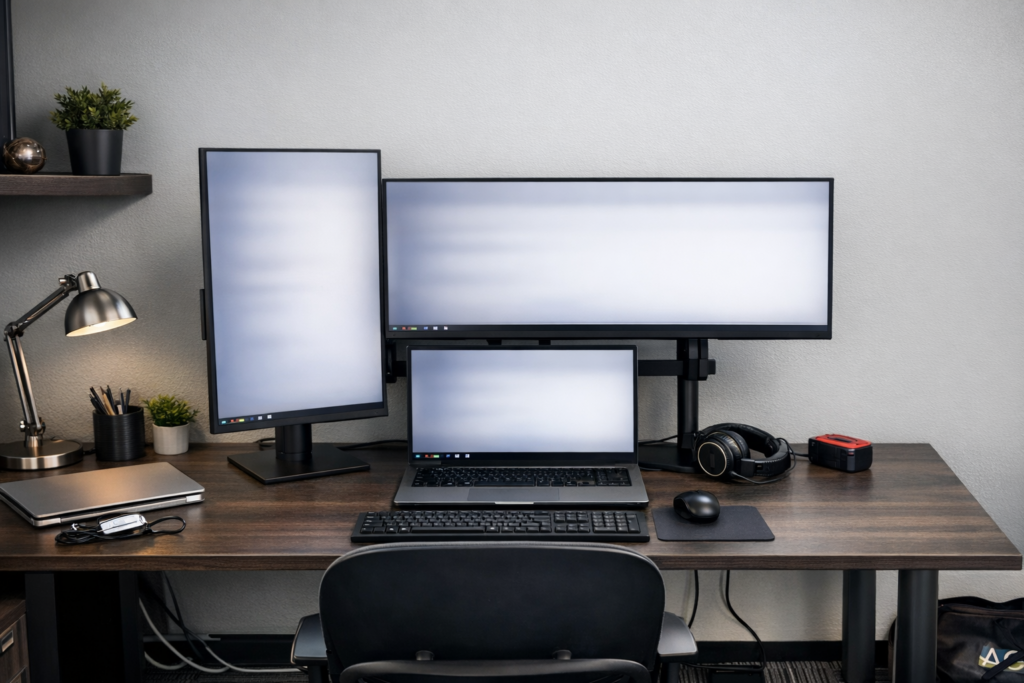
In today’s workplaces, the single-monitor setup has largely disappeared. Most professionals now work with two—or even three—screens to keep up with increasing digital demands. While this shift has improved efficiency and workflow, it has also introduced new ergonomic challenges that can contribute to musculoskeletal discomfort, particularly in the neck, shoulders, and upper back.
So the question becomes: is “more the merrier” when it comes to monitors—or are we creating new risks?
The Reality of Multi-Monitor Workstations
Multiple monitors allow users to view more information at once and reduce the need to constantly switch between applications. However, this convenience often comes at a physical cost.
Over the course of a workday, users may:
- Turn their head repeatedly from side to side
- Hold slightly rotated postures for extended periods
- Increase muscle loading in the neck and shoulders
Over time, this can lead to neck stiffness and discomfort, shoulder fatigue, headaches and visual strain.
Rethinking Monitor Positioning: Primary / Secondary vs Dual-Monitor Setup
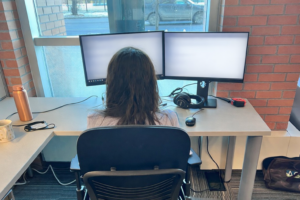
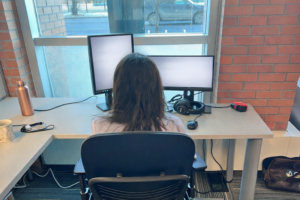
One of the most effective ways to reduce strain is to designate a primary monitor and position it directly in front of the user, aligned with the keyboard and natural line of sight. A secondary monitor is then placed to the side, angled towards the user on approximately a 35-degree angle (see photo), and used for reference material. This approach works best when frequently-used content is moved onto the primary screen.
Primary / Secondary Setup (Recommended)
- Maintains a neutral head and neck position
- Reduces repetitive or sustained neck rotation
- Encourages proper alignment with keyboard and mouse
However, not everyone can use this set-up because they need to look at each screen approximately 50% of the time. This would increase the static awkward postures of the neck for viewing the secondary screen. These users are best to adopt a dual-centered setup, sitting directly between two monitors and facing the seam between them (see photo).
Dual Monitor Setup Considerations

- Constant slight rotation left and right
- No true neutral viewing position
- Increased cumulative strain over time
While this setup may feel efficient, it often leads to greater discomfort during prolonged use.
The Use of Portrait Mode
If you are experiencing pain from turning your head too far to one side to view material on your screens, one consideration is to turn one monitor into portrait mode. This vertical position reduces the distance that you have to look to the far outside of the monitor. This mode is becoming more common, particularly if you regularly create or read long documents.
Potential Benefits
- Reduces side-to-side head movement
- Supports tasks involving long text or data sets
Potential Risks
- Content may sit higher on the screen
- Increased neck extension if monitor height is not adjusted
- Awkward viewing angles if poorly positioned
Portrait monitors can be helpful—but only when properly adjusted to avoid upward viewing. Try keeping the portion of the monitor you are viewing at the same height as your other monitor. This requires a bit more scrolling but is better for your neck.
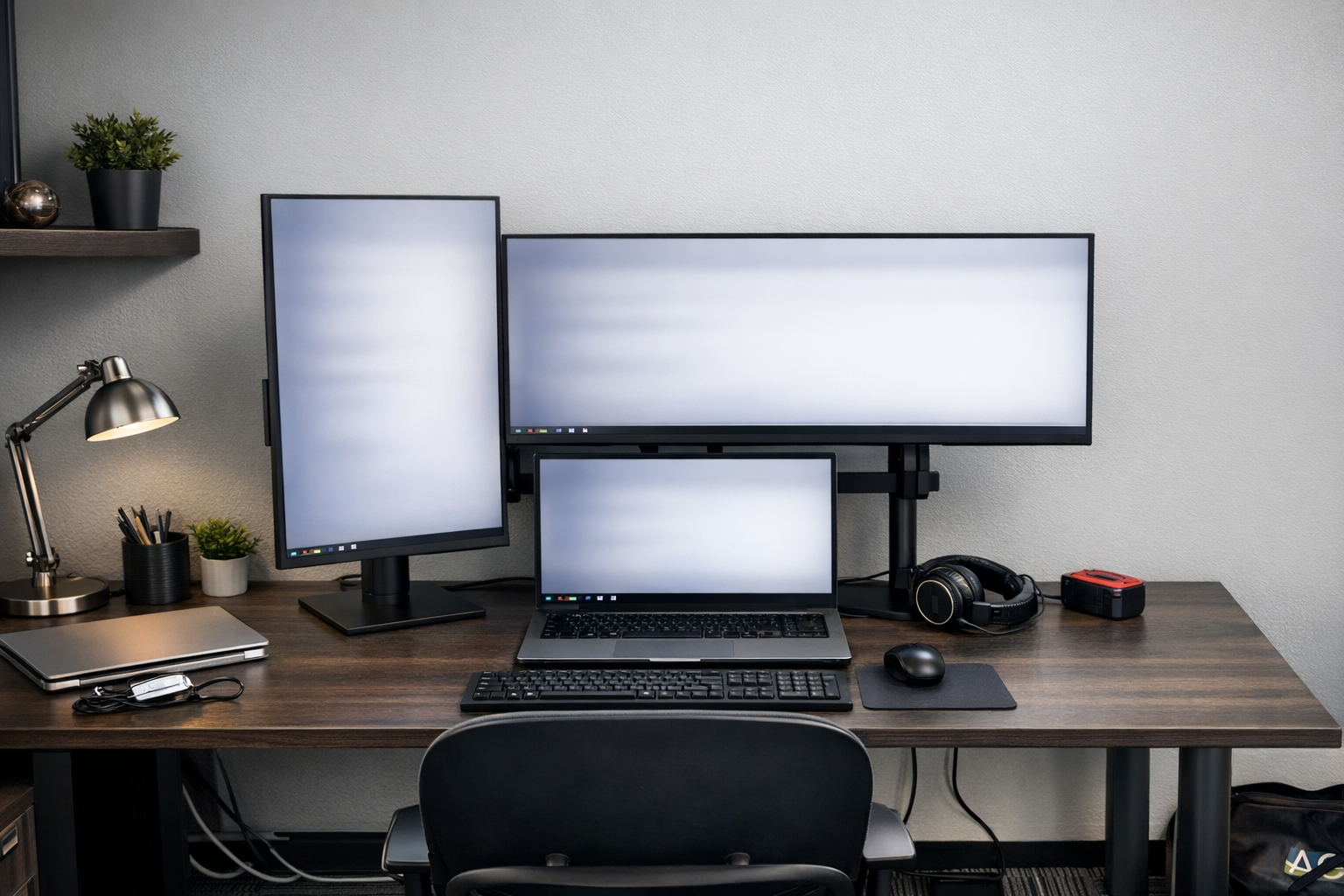
The “Third Screen” Problem
A growing trend is the use of laptops or tablets as an additional screen, often placed beneath external monitors (see photo). While this increases screen space, it frequently leads to poor positioning. Because the laptop takes up desk space and if open, it can lead to the monitor(s) above it being too high. This can lead to neck extension and muscle pain in the neck and upper back.
Common Issues with Stacked Screens
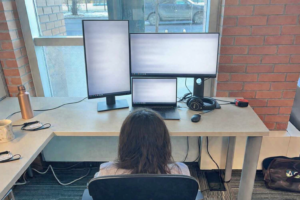
- External monitors raised too high
- Increased upward and downward neck movement (to look at the external monitor and the laptop)
- Greater strain on the cervical spine
Suggestions to Address this Issue
- Whenever possible, dock your laptop and position external monitors at the right height.
- If you are using your laptop for Remote meetings, consider closing it and getting an external webcam.
- If you need it as a third screen, consider placing it to the side (unless you are very tall and the monitors warrant being this high).
Monitor Height, Distance, and Angle
Regardless of how many monitors are used, proper positioning remains critical.
Key Setup Guidelines
- Viewing distance: 50–75 cm (20–30 inches)
- Monitor height: Top of screen at or slightly below eye level
- Viewing angle: Slight downward gaze (15–20 degrees)
When using multiple monitors, positioning them correctly is essential. The CSA Standard Z412 Office Ergonomics recommends that monitors be angled within 35 degrees to either side of the midline (angle them toward the user’s line of sight).
Final Thoughts
Although many people want more and larger monitors if they can have them for productivity reasons, that extra “visual real estate” isn’t always good for your neck, shoulders, and eyes. Without thoughtful setup, they can increase the risk of musculoskeletal discomfort.
To support both performance and well-being:
- Keep a primary monitor directly in front
- Use secondary screens strategically
- Avoid excessive neck rotation and extension
- Ensure proper height and distance
At Anderson Ergonomics, we believe the goal isn’t to limit technology—it’s to use it in a way that supports healthy, sustainable work. If you would like more information on how to set up your workstation for most comfort, please contact us.
If your neck and shoulders are tight or your eyes are sore from monitor use, do some stretches. Download our stretching sheet for some excellent stretches.